
Medchart
REQUESTER GUIDE
How to Manually Complete the OHIP Consent Authorization Form
This guide shows you how to fill out the Ontario Ministry of Health consent form correctly the first time. It is built from the most common errors we see on submitted forms — any of which will cause a rejection by OHIP.
The fastest, most reliable option is to use our integrated e-signature tool, which completes the form for you. If you prefer to complete the form manually, fill it out on your client’s behalf, then print it for their signature — this guide walks through that process.
Why this matters OHIP will not process any forms that are incomplete or contain incorrect/ inconsistent information. A single mismatched date, empty field, or missed checkbox will cause a rejection and add weeks to your timeline. Getting it right the first time is the fastest path to the records. |
Before you begin
- Use the current form. Always start from the latest version of the form which can be downloaded from your Medchart portal.
- Fill it in, then print and sign. Complete the form, print it, then sign it by hand. A form completed digitally but left with live, editable fields will be rejected.
- Complete every mandatory field. Fields marked with an asterisk (*) are mandatory. If any are left blank, the form will be rejected.
- Use the date format yyyy/mm/dd everywhere. Every date on the form — date of birth, time period, and signature date — must follow this format (for example, 2025/04/15).
- Ensure your client’s name, address, and date of birth match their ServiceOntario record. The client information in your Medchart portal and on your OHIP consent must match the information that is registered with ServiceOntario. A complete name, including middle name, is required for OHIP submissions.
- ServiceOntario Tips: Please note that updating a client's driver's licence address at ServiceOntario does not automatically update the address associated with the client's Ontario Health Card. If the client no longer remembers their health card number/registered Ontario address, or needs help updating this information, they can contact ServiceOntario at 1-866-532-3161.
Section 1 — Type of Request
|
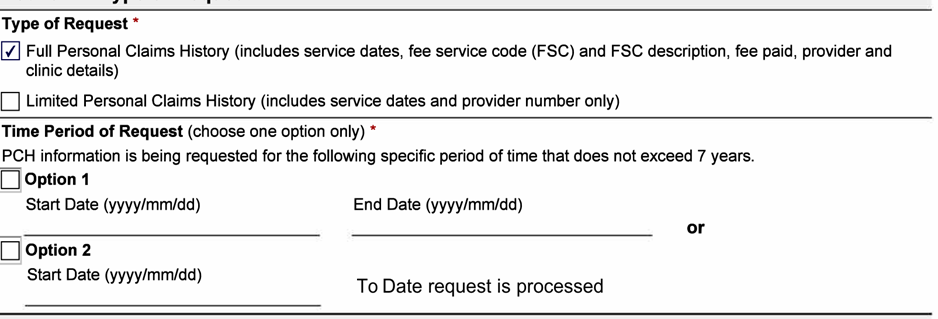
Type of Request (mandatory)
Select one box:
- Full Personal Claims History — service dates, fee service codes and descriptions, fee paid, provider and clinic details.
- Limited Personal Claims History — service dates and provider number only.
Time Period of Request (choose one option only)
- Option 1 — enter a Start Date and an End Date (yyyy/mm/dd).
- Option 2 — enter a Start Date; records run to the date the request is processed.
The request period cannot exceed 7 years. Select only one option.
You MUST check the box beside the chosen option in addition to completing the requested dates.
Match the start date to the portal The start date on the consent form must match the start date entered in the Medchart portal. A common error is reusing the timeframe from a previous request. If earlier records have already been fulfilled, set the start date to the day after the previous request’s coverage ended so you only receive new, updated records (for example, if records to 2025/04/14 were already received, start the new request at 2025/04/15). |
Section 2 — The individual whose PCH will be disclosed
|
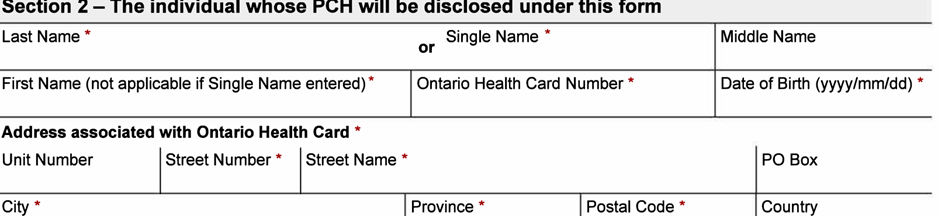
This is the client whose records are being requested. Complete every starred field accurately.
- Last Name / First Name Spell the name exactly the same way it appears everywhere else on the form.
- Middle Name — include it if the client has one. Don’t leave it out.
- Ontario Health Card Number — enter the client’s health card number.
- Date of Birth — required, in yyyy/mm/dd format. This field is mandatory; do not leave it blank.
- Address associated with the health card — put each piece in its correct field: Unit Number, Street Number, Street Name, City, Province, Postal Code, Country. Don’t combine them or place them in the wrong boxes.
The address on the client’s health card may differ from their driver’s licence Updating a driver’s licence at ServiceOntario does not automatically update the health card. If your client is unsure which address is associated with their health card, they should call ServiceOntario to verify.
|
Section 3 — Authority to Request the PCH
Section 3 has two parts: the consent statement and the authority options. Both must be completed correctly.
The consent statement
|
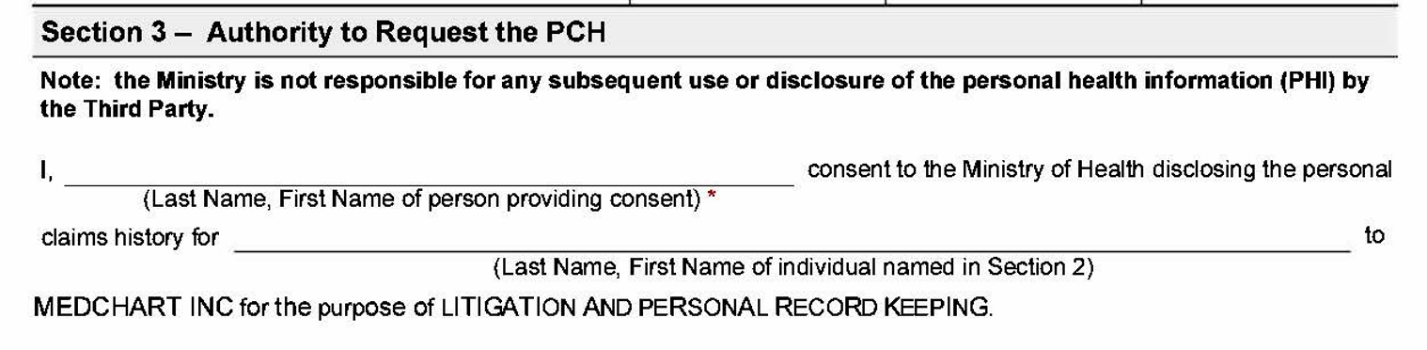
- Line 1 — Person providing consent. The person signing the form (Last Name, First Name).
- Line 2 — Individual named in Section 2. The client whose records are being requested (Last Name, First Name). For example, when someone signs on behalf of a minor, Line 1 is the litigation guardian or signer and Line 2 is still the client.
- Line 3 — Third party and purpose. This must read “MEDCHART INC”, and the purpose must read “LITIGATION AND PERSONAL RECORD KEEPING” — nothing else.
One receiver only Do not leave the third-party line blank, and do not add a law firm or any other recipient at the bottom. There can be only one receiver of the records: Medchart. Remove anything else. |
Select one authority option
|
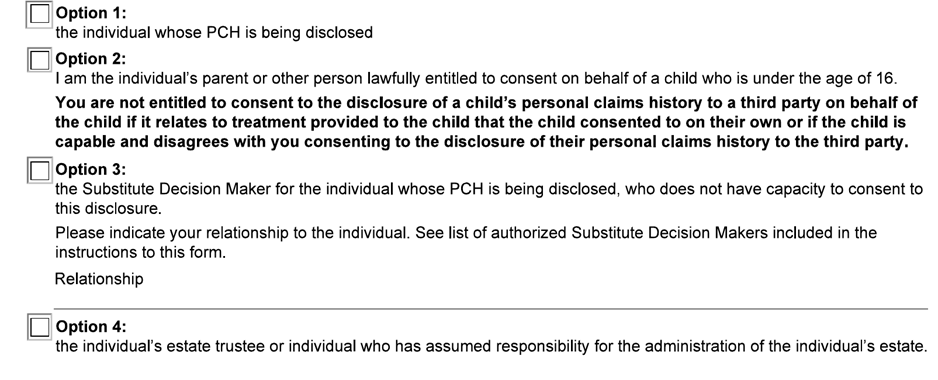
Choose one — and only one — of the four options that describe who is consenting:
- Option 1 — The client signed the consent themselves.
- Option 2 — The client is a minor (under 16) and did not sign the consent themselves; you are the parent or person lawfully entitled to consent on their behalf. Clients over the age of 16 must sign their own consent if they have the capacity to do so.
- Option 3 — The consent was not signed by the client, and the client is neither a minor nor deceased. You must indicate your relationship to the client. If no relationship is given, use Litigation Guardian.
- Option 4 — The client is deceased (estate trustee or person administering the estate).
The three errors we see most with the options
|
Signature and date
|

- Sign the printed form by hand. Print the form and sign it on paper. Typed computer fonts are not valid signatures.
- Add the contact telephone number and date. The date must be in yyyy/mm/dd format.
Scanning and submitting
- Double-check your work. Make sure the form is completed fully and accurately.
- Print clearly and scan the whole page. Poor image quality that makes the form illegible will be treated as incomplete. Make sure the whole page is in frame and the scan is clear.
- Provide the signed form to Medchart. Do not send the form to the ministry. It is Medchart’s responsibility, as the named third party, to submit the request.
- Corrections must be initialed. If OHIP returns your form for corrections, or if your form has obvious alterations — such as crossed-out fields, erased entries, or text boxes placed over handwritten content — the changes must be initialed by the client.
Quick reference: common mistakes and fixes
A summary of the issues that most often delay or reject a request.
Common mistake | How to do it right |
Checkboxes marked partially or unclearly (Section 1 and 3) | Mark each box fully and accurately |
Start date doesn’t match the portal (Section 1) | Use the portal start date; avoid reusing an old timeframe |
More than one Time Period option chosen (Section 1) | Choose one option only |
Date in wrong format (Section 1, 2 and 3) | Enter in yyyy/mm/dd |
Middle name omitted (Section 2) | Include the client’s middle name if they have one |
Address parts in the wrong fields (Section 2) | Place unit, street number, street name, etc. correctly |
Name spelled inconsistently (Section 2 and 3) | Match the spelling in every section |
Third-party line blank or names a law firm (Section 3) | MEDCHART INC only — one receiver |
Purpose altered (Section 3) | Must read: Litigation and Personal Record Keeping |
Signing Authority names mixed up (Section 3) | Line 1 = signer; Line 2 = client |
No authority option, or two selected (Section 3) | Select exactly one option |
Option doesn’t match who signed (Section 3) | Option 1 self; 2 minor; 3 other (state relationship); 4 deceased |
Signature flagged invalid / editable form (Entire Form) | Print the form, then sign by hand |
Outdated consent form (Entire Form) | Use the current version found in the Medchart portal |
Poor or cut-off scan (Entire Form) | Scan the full page ensuring all text is clear and in frame |
Name or address does not match ServiceOntario’s record | Client must contact ServiceOntario to update their information |